
Introduction
In the Eliko RTLS, there are three different types of devices that can be udated:
-
Tags can be updated via Micro-B USB port by using a special update package provided by Eliko. The update package runs on Windows PC and tags need to be connected to this PC via USB.
-
Similar to the tags, the anchors can also be updated by connecting them to a Windows PC via Micro‑B USB cable and running the special update package provided by Eliko. But for the anchors, there is also another option to perform this update through the RTLS Server. Please note that for the second option to succeed, the anchors need to be connected to the server via ethernet. Updating the anchors’ firmware over Wi-Fi link will be available in some future firmware release.
-
The RTLS Server software can also be updated by special update package provided by Eliko.
This document describes updating the RTLS Server software and updating the anchors’ firmware via the RTLS Server. It does not describe updating the tags’ and anchors’ firmware via Micro‑B USB port.
Uploading the Software Update Packages
Before the RTLS Server software or anchors’ firmware can be updated, the user needs to upload the corresponding update packages to the server. These packages are provided by Eliko. In case of a dedicated RTLS Server machine the upload is done via SFTP protocol by using special account credentials provided by Eliko. In case of a docker-based RTLS Server configuration, the user needs to upload the update packages into a special directory of the host machine.
Please note that just uploading an update package does not automatically launch the update process. Launching the update processes are described in the following chapters for anchor firmware and RTLS Server Software.
Uploading the Software Update Packages to a dedicated RTLS Server machine
In case of a dedicated RTLS Server machine, the packages are uploaded via an SFTP connection. To create an SFTP connection, you need the following:
-
A PC with SFTP compatible client application, for example FileZilla or WinSCP. The PC must have a network connection to the RTLS Server.
-
The RTLS Server’s IP address. If you are using the RTLS Server’s Wi-Fi or cable-based ETH_A network, this IP address is 10.8.4.1. If you are using the cable-based ETH_C network, use the IP address provided by your network router.
-
SFTP connection should be made to the RTLS Server’s port 22.
-
You also need the login credentials. The username is “update”. The password is provided by Eliko.
An example login window in WinSCP would be as follows:
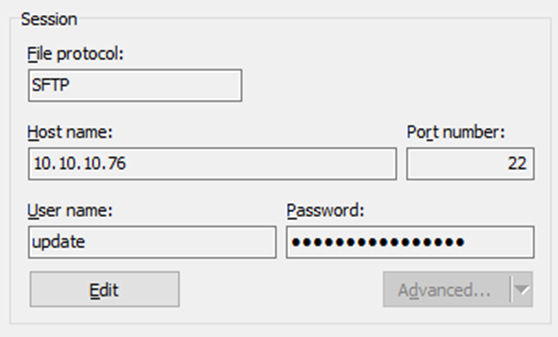
After logging in, you should see two subfolders: updates and update-logs. Navigate into folder updates and upload the files there. Both the RTLS Server software update packages and anchors’ firmware update packages go into the same folder.
Uploading the Software Update Packages to a docker-based RTLS Server host machine
In case of a docker-based RTLS Server, the update packages need to be copied to the machine hosting the docker. The user needs to navigate to the firmwares folder in the directory, where RTLS Server’s docker compose.yaml file is located. The firmwares folder should contain the same two subfolders as in case of a standalone RTLS Server machine, i.e. updates and update-logs. If no such folder exists, it must be created with both subfolders. Both the RTLS Server software update packages and anchors’ firmware update packages need to be copied into the updates folder.
Besides, the user needs to ensure that the RTLS Server’s docker compose.yaml file contains the following line under the “volumes” section:
- ./firmwares/:/srv/ftp/
Updating the Anchor Firmware
This chapter covers the topic about updating the anchors’ firmware through the RTLS Server. The anchors must be connected to the RTLS Server via ethernet for this method to succeed. Updatding the anchors’ firmware over Wi-Fi link will be available in some future firmware release.
This document does not cover the topic about updating the anchors’ firmware via Micro-B USB port. If you prefer to update the anchors via USB, please ask Eliko for instructions.
To update the anchors’ firmware via the RTLS Server, two steps are required:
-
Upload the firmware update package to the RTLS Server by using the SFTP protocol. This is described in chapter “Uploading the Software Update Packages”.
-
Use the RTLS Server Communication Protocol to launch the update and query the update status. These are described in chapters “SET_ANCHOR_FIRMWARE” and “GET_ANCHORS_E”.
Please note that whenever possible, it is advised to keep the same firmware version in tags and anchors. The firmware version is expressed in format MAJOR.MIDDLE.MINOR. Firmwares with different major versions can’t be used together. Firmwares with different middle versions may work together, but there may be some degradation in performance or issues with some specific functionality. Firmwares that differ only by the minor version can be used simultaneously in most cases.
SET_ANCHOR_FIRMWARE
This request allows to launch the anchor firmware update process. Note that before using this request, the client needs to deliver the firmware update package to the RTLS Server via SFTP protocol.
Client sends:
$PEKIO,SET_ANCHOR_FIRMWARE,<parameter list>
<parameter list> is a comma-separated list with the following fields:
|
Field name |
Explanation |
Example |
|
Anchor’s Serial Number OR The keyword “ALL” |
Selects the anchor for which the firmware will be updated. Alternatively, keyword “ALL” may be specified to update the firmware in all of the online anchors. |
0x000226 |
|
New Firmware Version |
The RTLS Server may simultaneously hold multiple update packages for the anchors. This parameter allows to select the new firmware version to be used for update. The RTLS anchor update package is delivered to the RTLS Server as a single file. The name of this file always begins with “Kio_device_update_”, followed by the firmware version (see example on the right). Note that it is not required to specify the full version string with this parameter, only the relevant part from the beginning that uniquely identifies the update package. Instead of the example on the right, specifying just “2.0.1” would be sufficient in most cases. |
2.0.1-eb3c84f_1571317403 |
A full example of client request would be:
$PEKIO,SET_ANCHOR_FIRMWARE,ALL,2.0.1-eb3c84f_1571317403
If processing the request was successful, the system responds:
$PEKIO,OK
This response indicates that the RTLS Server has checked the preconditions and anchor firmware update has been started. The update process itself is performed asynchronously. Depending on the anchor count to be updated, this process may take from tens of seconds to several minutes. To get information about the update process, the client can use the GET_ANCHORS_E request, for which the system responds with ANCHOR_COORD_E response. During the update process, the “Anchor’s Connection State” field in the ANCHOR_COORD_E response is -3. When the update is finished and the connection to the anchor has been established again, this field returns to the value of 3. The client could then check also, if the “Anchor’s Firmware Version” field matches the desired version.
If the system encountered an error when processing the SET_ANCHOR_FIRMWARE request, the following response will be sent:
$PEKIO,NOT_GOOD,<error ID>
<error ID> can be one of the following:
|
Error ID |
Explanation |
|
NO_VERSION |
Firmware version not specified in the request. |
|
NO_ID |
Anchor Serial Number not specified in the request. Note that instead of Serial Number, keyword “ALL” is also valid. |
|
NO_FILE |
There is no such file with the specified firmware version. |
|
TOO_MANY_FILES |
The user did not specify the full string of New Firmware Version, but a substring, and this matches with multiple update packages. |
|
UNKNOWN_ID |
The system has no such anchor as was specified in the request. |
|
ANCHOR_OFFLINE |
The system has the anchor that was specified in the request, but it is currently offline. The firmware can’t be updated. |
|
ALREADY_RUNNING |
Previous instance of updater service is still running, not starting another at the moment. |
|
<any other error> |
Other errors are considered as server’s internal errors. Please report them to Eliko. |
A full example of the system’s response would be:
$PEKIO,NOT_GOOD,ALREADY_RUNNING
Updating the RTLS Server Software
Introduction
Updating the RTLS Server software consists of two steps:
-
Upload the software update package to the RTLS Server by using the SFTP protocol. This is described in chapter “Uploading the Software Update Packages”.
-
Connect to the RTLS Server update Service to launch the update and query the update status. This will be described below.
Important! The RTLS Server runs a special update service that listens incoming TCP connections on port 25020. The protocol format is the same as described in chapter “Protocol Format”. The command set of the RTLS Server Update Service is different from commands supported by the RTLS Server Daemon, though.
The command set of the RTLS Server Update Service is described in the following chapters.
GET_SYSTEM_VERSION
This request allows to get the current system version.
Client sends:
$PEKIO,GET_SYSTEM_VERSION
update service responds:
$PEKIO,SYSTEM_VERSION,<system version number>
There is currently only a single field for <system version number>, which may be for example 20191018 and is always in increasing order when update to a newer software version is performed. For future compatibility, the client should accept also a response packet with additional comma-separated fields added to the end of this response. These additional fields may describe the exact versions of different software components used in the RTLS Server.
A full example of update service response would be:
$PEKIO,SYSTEM_VERSION,20191018
GET_UPDATER_VERSION
This request allows to get the current version of the RTLS Server’s update service.
Client sends:
$PEKIO,GET_UPDATER_VERSION
Update service responds:
$PEKIO,UPDATER_VERSION,<updater version number>
At the current stage, the <updater version number> is informative only and its structure may change in the future. It is advised that the client software should accept multiple comma-separated values here and should not expect that their structure will be the same in the future, compared to the example below.
A full example of update service response would be:
$PEKIO,UPDATER_VERSION,1.0.0,1000000
GET_LIST
This request allows to query the list of update packages the client has uploaded to the RTLS Server. The response contains all the files the client has uploaded to the “updates” folder via SFTP protocol, without checking if they actually are usable for the update or not. As update packages for the anchors and server are to be uploaded in the same folder, all of them are visible in the response.
Client sends:
$PEKIO,GET_LIST
Update service responds with one NMEA sentence per file and terminates the list with special EOF marker:
$PEKIO,<parameter list>
$PEKIO,<parameter list>
...
$PEKIO,EOF
<parameter list> is a comma-separated list with the following fields:
|
Field name |
Explanation |
Example |
|
File Name |
The name of file uploaded into the “update” folder via SFTP protocol. |
kio-server-update-20191018 |
|
File Size |
The size of the file in bytes. |
12382723 |
A full example of update service response would be:
$PEKIO,kio-server-update-20190917,5665208
$PEKIO,kio-server-update-20191018,12382723
$PEKIO,Kio_device_update_2.0.2-868ea94_1573054937,1747109
...
$PEKIO,EOF
APPLY
This request starts the RTLS Server software update process. Note that before using this request, the client needs to deliver the software update package to the RTLS Server via SFTP protocol. This process is described in chapter “Uploading the Software Update Packages”.
Client sends:
$PEKIO,APPLY,<New Software Version>
Description for the <New Software Version> field is as follows:
|
Field name |
Explanation |
Example |
|
New Software Version |
The RTLS Server may simultaneously hold multiple update packages. This parameter allows to select the new server software version to be used for the update. The RTLS Server software update package is delivered to the RTLS Server as a single file. The name of this file always begins with “kio‑server‑update‑”, followed by the software version (see example on the right). |
20191018 |
A full example of client request would be:
$PEKIO,APPLY,20191018
If processing the request was successful, the update service responds:
$PEKIO,OK
This response indicates that the RTLS Server’s update service has checked the preconditions and server software update has been started. The update process itself is performed asynchronously. Depending on the features to be updated, this process may take from tens of seconds to several minutes.
Note that after sending this success marker, the update service disconnects the client’s TCP connection, but it is advised for the client to restore it to be able to get the status information. During the update, the status may be queried by using the request GET_UPDATE_STATUS. After the update has finished, it is advised to use the GET_SYSTEM_VERSION request to check if the reported system version now matches the desired one.
If the update service encountered an error when processing the APPLY request, the following response will be sent:
$PEKIO,NOT_GOOD,<error ID>
<error ID> can be one of the following:
|
Error ID |
Explanation |
|
CANNOT_FIND |
The software version specified in the request could not be found. |
|
ALREADY_RUNNING |
The software update process is already running, not starting a new instance. |
|
FILE_BROKEN |
The specified software update package file is broken. Additional to the “FILE_BROKEN” keyword, a numerical error code is given. Please report this error to Eliko. |
|
VERSION_INCOMPATIBLE |
The specified software update package file is not compatible with the current system version. Additional to the “VERSION_INCOMPATIBLE” keyword, a numerical error code is given. Please report this error to Eliko. |
|
<any other error> |
Other errors are considered as server’s internal errors. Please report them to Eliko. |
Some full examples of the system’s error responses would be:
$PEKIO,NOT_GOOD,ALREADY_RUNNING
$PEKIO,NOT_GOOD,FILE_BROKEN,1
GET_UPDATE_STATUS
This request allows to query if the RTLS Server software update process is currently running or not.
Client sends:
$PEKIO,GET_UPDATE_STATUS
If the server’s software update process is currently not running, the response will be:
$PEKIO,UPDATE_NOT_RUNNING
If the server’s software update process is currently running, the response will be:
$PEKIO,UPDATE_RUNNING,<parameter list>
<parameter list> is a comma-separated list with the following fields:
|
Field name |
Explanation |
Example |
|
Start Timestamp |
Unix Timestamp when the update was started. |
1576078925 |
|
New Software Version |
Software version, to which the server is currently being updated. |
20191018 |
|
Progress |
Software update progress. |
3/5 |
A full example of update service response would be:
$PEKIO,UPDATE_RUNNING,1576078925,20191018,3/5
DELETE_FILE
This request allows the client to delete an update package file from the “update” folder.
Client sends:
$PEKIO,DELETE_FILE,<File Name>
<File Name> is the name of the file to be deleted.
A full example of client request would be:
$PEKIO,DELETE_FILE,kio-server-update-20191018
If processing the request was successful, the update service responds:
$PEKIO,OK
If there is no such file in the “update” folder, the update service responds:
$PEKIO,NOT_GOOD,CANNOT_FIND